Contacts, jobs, and schedule
Organize contacts and properties, create jobs, and schedule visits in Relato.
Updated: 2026-10-05Contacts and properties
In Contacts, search by name, email, or phone. The directory loads 25 people per page. Open a profile to see its referrals, rewards, properties, jobs, and possible matches available to your role. Referral, job, and reward counts appear only when your role allows access; a dash means a count is unavailable. The kept contact's counts include merged contacts when your role allows those records; each reward keeps its original referrer. Customer contacts are not Relato users and do not use team seats.
1. Open Contacts and use New contact to add the person who requests service.

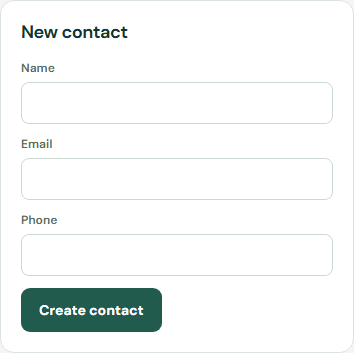
If Relato cannot confirm the save, your entries stay in the form. Check Contacts before trying again. If the contact is not listed and the error continues, contact Support.
To correct a profile, open it and choose Edit contact. The current name, email, phone, and notes are loaded before you save; leaving a field empty clears it from the profile. If we cannot confirm the save, your entries stay in place so you can retry the same attempt while this screen remains open. If you return to the profile while the save is still unconfirmed, choose Review and retry to continue with those same entries. If the profile changed before your save, the draft is blocked. Refresh the current profile, compare its details, and explicitly choose Discard draft and use current profile before starting a new edit. If you leave or reload before an uncertain save is confirmed, review the profile before editing again. If the message says the contact was updated but the profile or directory does not show every change, reload the page before starting another edit.
When two contacts share an email or phone number, Relato suggests a match. Review both people before choosing which profile to keep or marking them as different people. Relato never merges them automatically. A merged profile remains in the business history. Only people with contact match review access can merge contacts or mark them as different.
The kept contact's profile includes properties, jobs, and referrals from previously merged contacts, according to your permissions. Historical records keep their original contact.
If Relato cannot confirm a merge or dismissal while this screen is open, the same decision stays available with the same attempt, including when the match disappears from the refreshed list. Retry that same decision. A conflict blocks the attempt: refresh matches and open both contact profiles before deciding what to do next. Do not change the decision on a blocked attempt. If you leave or reload the page before the result is confirmed, review the list and both profiles before starting another decision.
To add a service address, open the contact profile and complete Add property. Give it a label if needed, then enter the street address, city, state, and postal code. Apartment or unit and notes are optional. If Relato cannot confirm the save, your entries stay in the form; retry the same save or check the contact profile before starting a new one.
Jobs and schedule
In Jobs, choose a contact, add a title, and optionally set a repeat interval in days. Then, in Schedule, choose the job, one or more team members, and the visit start and end times. Leave the team selection empty to keep the visit unassigned. Everyone selected can see the visit in their employee portal. Times must be complete and a visit can last no longer than 24 hours.
If your role only lets you view assigned jobs, the next visit shown is one assigned to you; it does not show another team member's schedule.
The schedule accepts date ranges up to 93 days. A visit cannot overlap another visit assigned to any of its team members; choose another time or adjust the assigned team.
The employee portal's upcoming list hides visits marked completed or canceled.
2. Open Jobs to create a job for that contact. Set a repeat interval if the work is recurring.

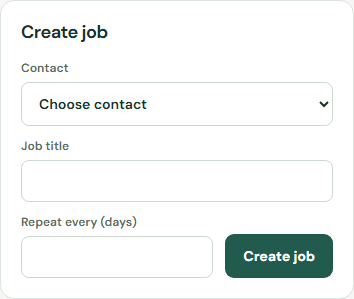
If a job save cannot be confirmed, keep the form as it is and check Jobs before trying again. Open a job in the list to read its notes and private files. People with job management permission can add a note or upload a PNG, JPG, WebP, or PDF of up to 10 MB. If a note save cannot be confirmed, the text stays in the note form; retry that same note or check the job's notes first. File upload requires private storage to be configured by Relato. Viewing private files requires permission to view jobs. Notes and private file details load independently; if files cannot load, the notes remain available. Choose Reload private files to try again.
Open a job to choose one of its existing statuses. This changes the job status only; a visit keeps its own status. If Relato cannot confirm the change, your selected status stays in the panel. Retry that same change or check the job before choosing another status.
The Job pipeline shows the current jobs grouped by status. Each column has its own pages; its range and total refer only to that status. Open a card to continue in the job detail. The pipeline does not change status.
In a job, Job costs keeps manually entered expenses, materials, and labor for that work. The total covers every recorded cost, including entries on other pages. Correct an entry with a reason; its previous and corrected values remain in history. These are historical records: they do not recalculate from the current price book and do not represent payroll or accounting. Viewing and managing costs require the corresponding finance access.
Inventory tracks quantities by location. Create an item with the unit your team uses, then choose an item and location to review its balance and movement history. Record stock in or stock out as a positive quantity with up to three decimal places; enter a signed difference for an adjustment. Every movement needs a reason, and changes that would leave a negative balance are blocked. Inventory movements are manual: creating or changing a quote or invoice does not deduct stock automatically.
In Purchasing, create an internal order with a supplier and one or more item lines. Enter the quantity and the manual total cost for each line in USD. Confirming an order records it inside Relato; it does not send the order to the supplier or make a payment. Record each delivery as a receipt, selecting the location, quantity, and reason. Partial receipts are supported. Each receipt creates one inventory entry, and the order shows its receipt history. Refresh Stock to see the updated balance.
Service plans
Create a service plan template and, optionally, attach a copy of a job template. Each agreement copies the selected service plan version and its job template snapshot, so later template edits do not rewrite that agreement. Agreement dates include both the start and end date and use the business time zone saved with the agreement.
Create a new agreement to renew a customer plan; the new agreement links to the previous one without changing it. Visits are created manually from the agreement using a non-recurring job and a future time in the agreement time zone. Service plans do not generate visits on a cadence or create charges automatically.
Canceling an agreement requires a reason. Visits already scheduled remain on the calendar; no additional visits can be created from the canceled agreement. If a save cannot be confirmed, retry the same change while the screen stays open. A blocked change needs review before you continue.
If a movement save cannot be confirmed while this page is open, retry the same movement with the same details. Review its movement history before starting another action if you leave or reload.
When creating a job from a template, Relato copies the selected template into that job; later template edits do not rewrite existing jobs. Required checklist items must be completed before a job can be completed. People with job management permission can set up and update a checklist; assigned team members can review it. An owner can record an exception with a reason, which is kept in the audit history. From a job detail, people with job management permission or assigned-job access can start, pause, resume, and stop a time entry. Relato stores server-timestamped work intervals; paused time is excluded. The dashboard displays elapsed minutes and does not calculate payroll.
3. Open Schedule, choose the job, select one or more team members, and set the visit's start and end time. Mark it complete after the service. For a recurring job, Relato keeps the same team on the next visit at the same local time.
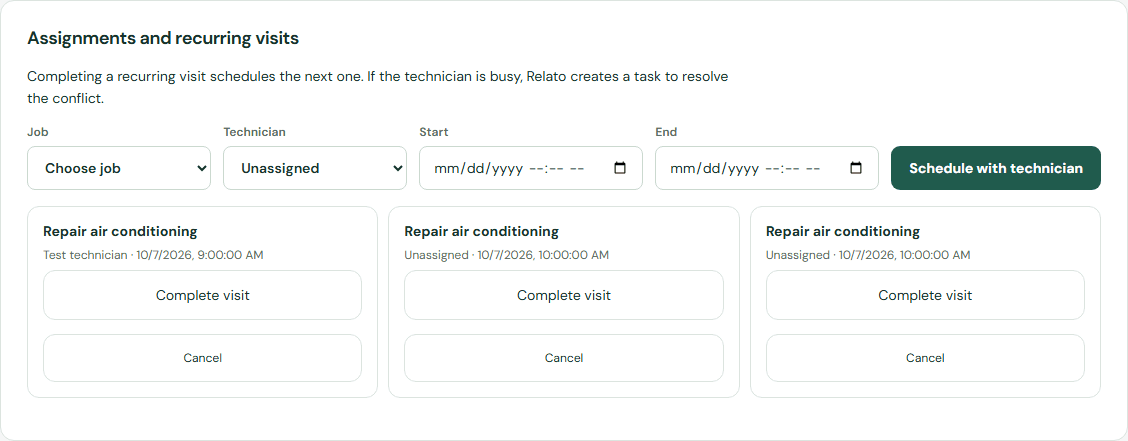
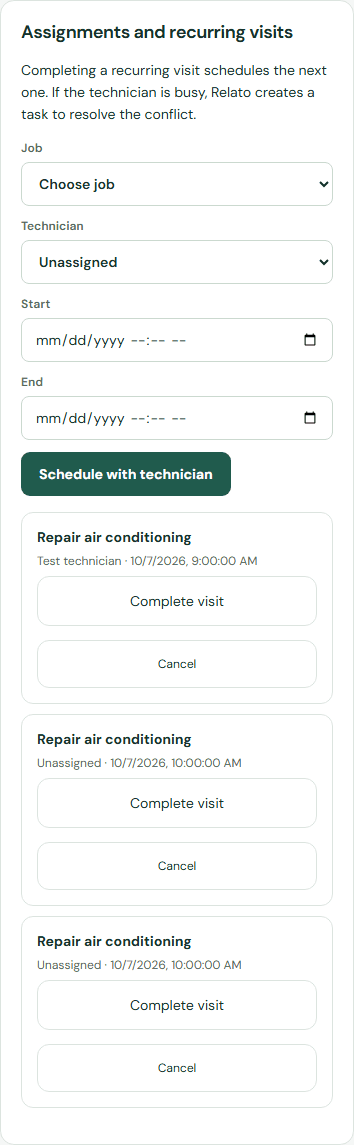
If any assigned team member already has a visit at that time, choose another time or adjust the team. If an automatically recurring visit conflicts, Relato creates an internal task for review. Connected external calendars supply availability only; changes to them do not reschedule Relato jobs.
If a calendar connection is disabled, it is not available yet. You can continue scheduling visits in Relato and contact support for help.
If reactivating a canceled visit is rejected for an overlap, or the same job already has a visit at that time, check the schedule and choose another time or adjust the assigned team. Keep one visit per job and start time.
If scheduling, completing, or canceling a visit reports a connection error, the form stays available. Retry the same action before changing its details; if the schedule reports a conflict, review the agenda and choose a valid time or adjust the team.
Use View availability for to inspect a connected team member's busy times before scheduling. Each person connects their own Google or Outlook account. Relato reads availability without importing or changing external events.
Quotes, invoices, and payments
4. In Finance → Quotes, choose a job, add line items in USD, and create a quote. You can create a secure signing link. After the customer accepts it, convert the accepted version into an invoice.
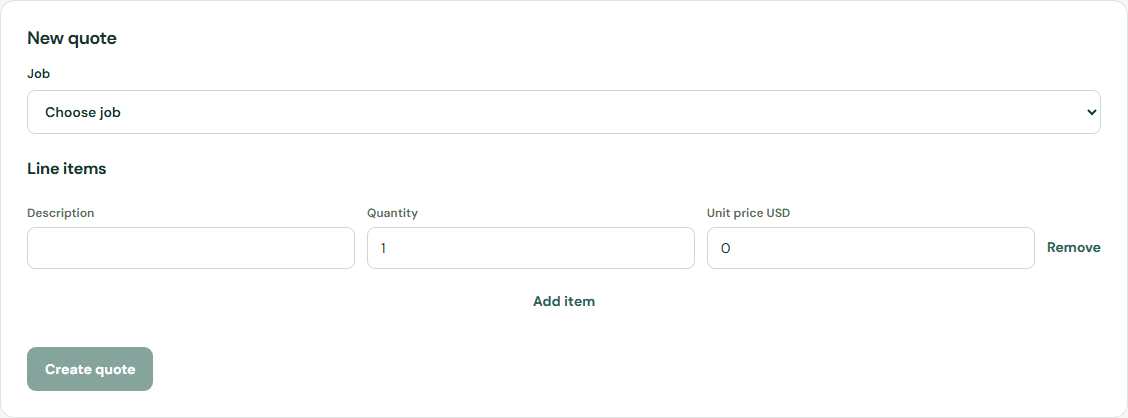
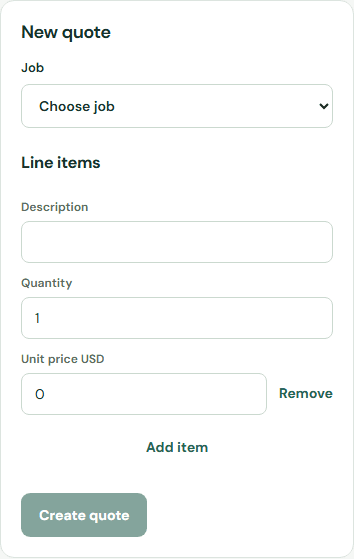
Quotes and invoices load independently. If one list cannot load, reload the page and check that list again. If you can view finance documents but the job selector is unavailable, ask the business administrator to review your job access. Settings stay unavailable until their saved values load, so default values are never offered as a substitute. If settings do not load, choose Retry loading settings or ask the business administrator to review them; quotes and invoices remain available. If Stripe status is temporarily unavailable, quotes and invoices remain visible and payment controls stay unavailable; try again later.
If a quote save cannot be confirmed while this screen is open, retry the same save. If you leave or reload the page before confirmation, refresh Quotes and check whether the quote is listed before creating another. If the save reports a conflict, review the refreshed list first.
To change a quote before acceptance, choose Revise this quote, edit its line items, and save a new version. The previous signing link stops working; create a fresh link for the new version.
Creating a signing link opens it for a person to review and sign; it does not send an email or message automatically. If the result is unclear while the page stays open, retry the same link request.
Accepted or void quotes cannot be revised. Closing the editor does not stop a save already in progress. While this page stays open, an unconfirmed revision keeps its entries and the same attempt; return to that quote and retry the same revision. If you leave or reload before it is confirmed, refresh Quotes and check the current version before starting another revision. If the save reports a conflict, refreshing and reopening keeps that attempt blocked; review the current version, then reload the page before starting a new revision. If the quote can no longer be revised, review its current status before deciding what to do next.
Choose a due date before creating an invoice, or leave it blank for 30 days. You can create an invoice directly from a job with line items, or convert an accepted quote. Conversion keeps the accepted version's line items and terms. In Invoices and payments, mark an invoice sent, then record external payments and refunds with a reference. The invoice shows the balance after partial payments and flags overdue dates. Its history lists payment and refund records available to your role; viewing history does not charge or refund money, or confirm bank reconciliation. If the history cannot be loaded, choose Reload history to try again. Stripe Connect checkout becomes available only after the business connects an eligible account.
If an invoice save cannot be confirmed while this screen stays open, retry the same save. If you leave or reload before confirmation, refresh Invoices and check whether it is already listed before creating another. If a quote conversion says an invoice already exists, refresh Invoices and review that document. If the invoice is confirmed but the list cannot load, the save notice still applies; reload the list to see it.
If a refund is rejected because of the available balance, refresh the invoice and review what remains available and which refunds are already listed. If it is unclear whether the entry was saved, ask the business administrator or Support to review it before recording another refund.
Recording an external payment or manual refund only records the details in Relato; it does not move money or reconcile a bank account. If the result is unclear while this screen stays open, retry the same entry; its details stay locked to that attempt. A conflict keeps the entry blocked even after refreshing history, because the history alone does not confirm whether that attempt was saved. Ask the business administrator or Support to review it before recording anything else. After a confirmed entry, choose Record another payment or Record another refund to deliberately start a new one. If you leave or reload before confirmation, the attempt is not kept on this screen; review the invoice and payment history with the business administrator before starting another entry.
If a payment link is no longer active, refresh the invoice and check its balance and payment history before requesting another link. A delayed response does not mean the payment failed.
Tax and terms
In Finance → Tax and terms, an authorized administrator can save the time zone, tax rate, quote terms and invoice terms for the business. Existing documents keep their saved values. Settings load independently from quotes and invoices. If settings do not load, choose Retry loading settings; the finance lists remain available. Viewing finance documents does not grant permission to change these settings.
After a save, the confirmation shows the values you submitted. Check Tax and terms again to see the latest saved values before starting another change. If a connection or session issue leaves the same change unconfirmed while this Finance screen is open, retry that same change; its details remain here when you switch Finance tabs. A conflict stays blocked even after checking settings, so ask the business administrator or Support to review it. Leaving the Finance workspace or reloading the page clears an unconfirmed change from this screen; check the saved settings before deciding what to do next.
Automations and roles
5. In Automations, start from a template or make a rule for referral, job, invoice, or payment events. Enable it after checking the email text or internal task.
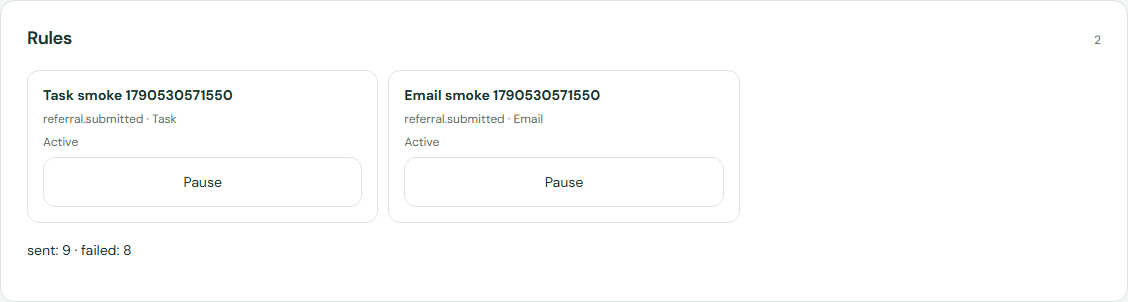
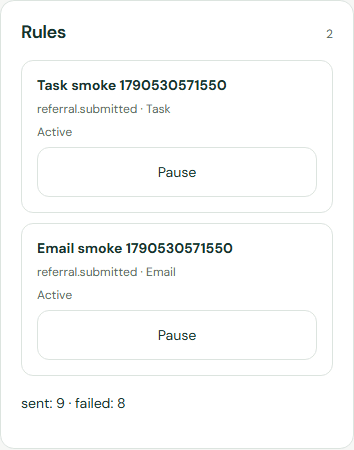
New rules start paused. Review the trigger, conditions, delay, and action before enabling one. You can edit an existing rule; changes affect future matching events and do not replay earlier events or send queued work immediately. If a save response is unclear, the same attempt is kept while this page stays open. After leaving or reloading, review the rule list before trying again.
An email or task shown as queued is waiting; it does not confirm that the action finished or the email was delivered. Contact Support if it does not move forward.
If an assignment is not accepted, choose a current team member or leave it unassigned.
Open tasks appear in Tasks. A team member with task management access can mark one complete. While this page stays open, an uncertain completion keeps the same attempt for retry. If you leave or reload before it is confirmed, check the task list before trying again; the action may already have finished. If you can view tasks but cannot complete them, ask the business administrator to review your role.
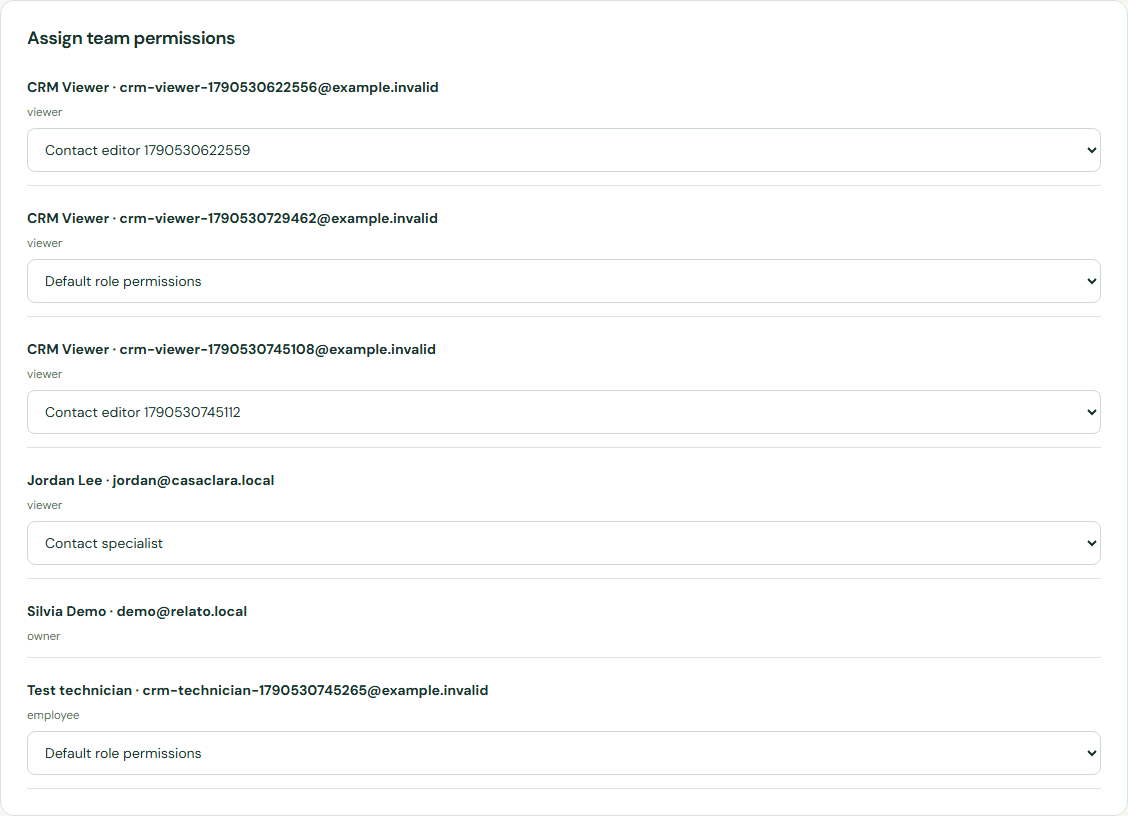
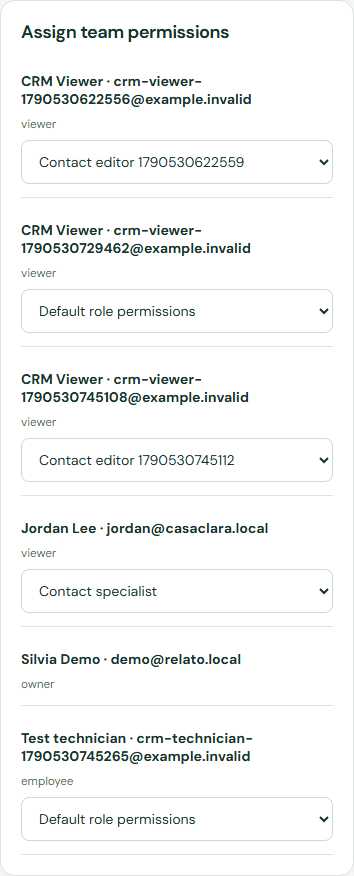
6. The owner can create a role in Roles and choose which modules each team member may use.
Permissions
The owner manages permissions under Roles. Every read and change is checked against the active business. An employee with access only to assigned jobs cannot see the full contact directory.
Business tags
People with tag management access can create tags, rename them, or retire them in Settings. Names preserve capitalization and accents: Urgente and urgente can coexist, while an exact duplicate cannot. Each name can contain up to 80 characters. Retiring a tag prevents new assignments, including to existing records, while keeping its previous links and history. This screen does not yet assign tags to contacts or jobs.
If the catalog does not load, choose Refresh catalog. If a save is not confirmed, the same change stays here while this screen remains open; choose Retry the same change. If the change becomes blocked, refresh the catalog and ask the business administrator to review it; do not resend it. If you leave Settings or reload before confirmation, review the catalog before starting another change.
On a contact or job profile, people with permission to change that record can add an active tag or remove a direct association. Retired tags remain visible on existing records, and tags inherited from merged source contacts are marked as historical and cannot be removed from the retained profile. A tag with the same spelling but different capitalization is a separate tag; the picker shows only active tags for new assignments. If a change is not confirmed, retry the same change. If it remains blocked, refresh the record and ask the business administrator to review it before making another change.
Record catalogs
Authorized owners and managers can create, rename, and retire contact lead sources, job types, and business units in Settings. Values appear in a contact or job profile only for roles with the relevant contact or job access. Choose a value in the profile and press Save; changing the selection alone does not save it. Retired values stay visible on records that already use them, but cannot be selected for new assignments. Retiring a value keeps its history.
Private job files are stored on this device in this local environment. They are not uploaded to an external storage provider.
Communications
Communications keeps contact and job conversations separate. You can save message drafts, internal notes, and service or marketing consent records separately. Consent details are entered by your team; this screen does not verify that consent is legally sufficient. A simulated SMS is only a local record and does not send a real text message. No external messaging provider is contacted from this screen.
If a change is not confirmed while this screen stays open, retry the same action. If you leave or reload before it is confirmed, review the conversation before trying again. A simulation marked as simulated never means that a customer received a message.
Service preference
Open a customer and use Service preference to mark Do not service, recording a reason. New jobs, estimates, visits, messages and portal requests are blocked. Existing visits, records and payments remain; nothing is cancelled or refunded automatically. Removing the block also requires a reason. You need permission to edit the customer.
Search another guide or submit a ticket from your dashboard.