Create a referral campaign
Configure each campaign's message, benefit, and bilingual form. Share the hosted form or connect your own form through the JSON endpoint.
Updated: 2026-09-27What you will configure
Each referral link works as an independent campaign. You can explain what the program offers, collect the referrer's details separately from the referred person's details, and publish the complete experience in English and Spanish.
Create and present the campaign
1. Open Referrals, enter an internal name so you can recognize the campaign, and add a source if you want to track where it was shared.
Name the link so you can recognize it later.
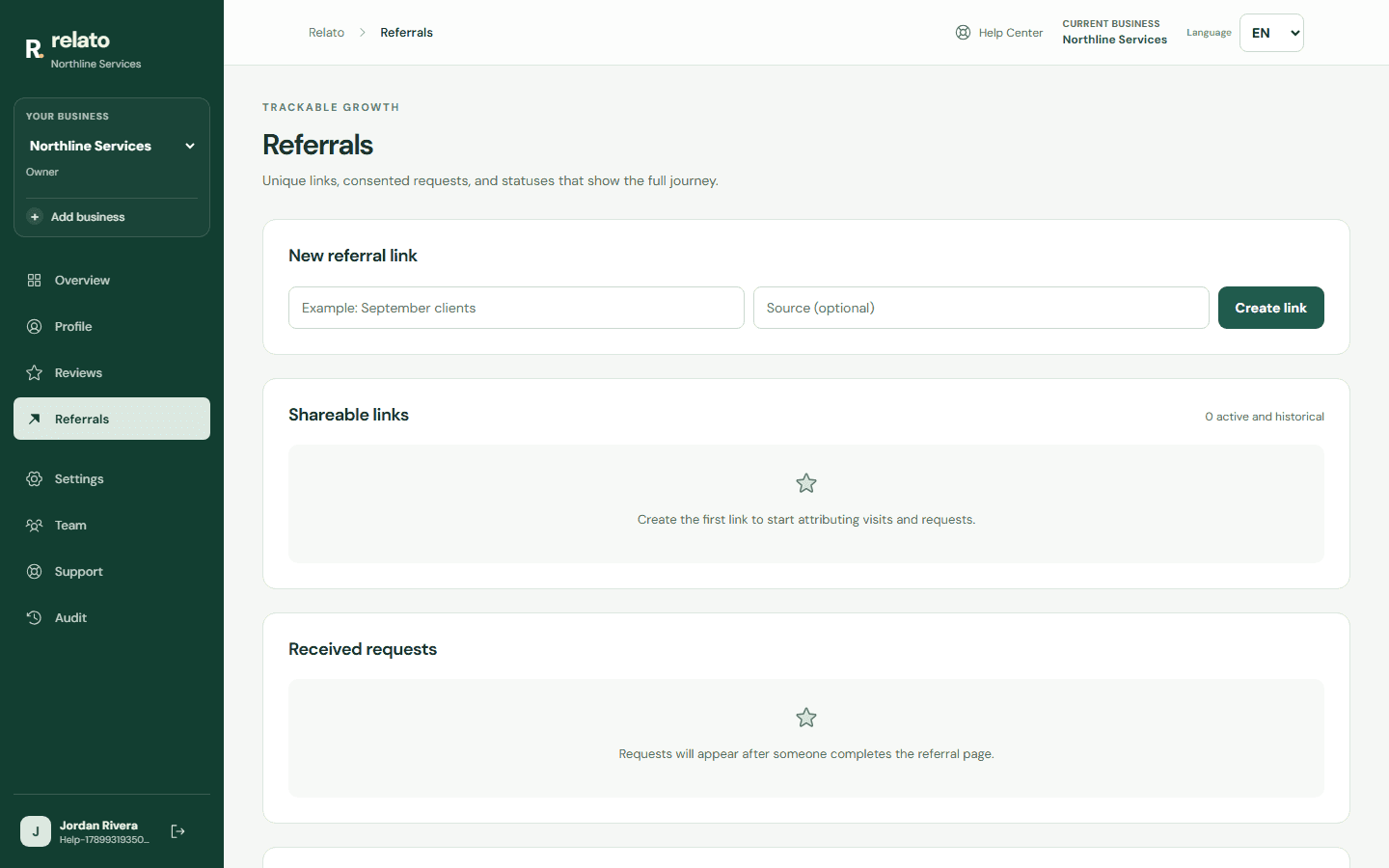
Source is optional: use it to identify where referrals come from.
Name the link so you can recognize it later.

Source is optional: use it to identify where referrals come from.
2. Under Form and integration, select the link you just created.
3. Complete the headline, description, and benefit or reward. Write each text in English and Spanish; the public form will show the version that matches the selected language.
4. Review the form fields. The initial configuration separately requests the referrer's name, phone, and email and the referred person's details. It also includes an optional field for the service they need.
5. Save the form and open the hosted link to review the campaign before sharing it.
What Relato receives
The primary record represents the referred person. The table also shows who referred them, including their phone and email when provided.
Before submitting, the referrer must confirm that they have permission to share the other person's details. Relato stores that consent with the record.
Track referrals and rewards
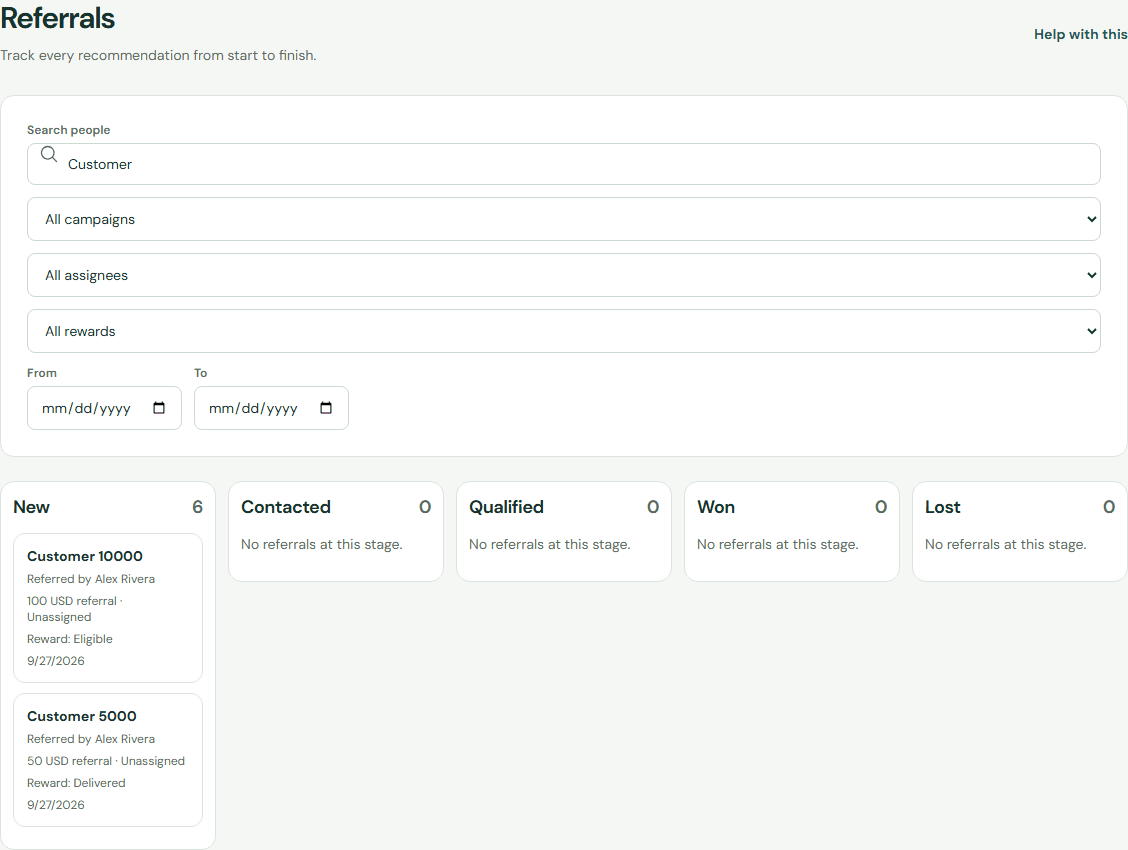
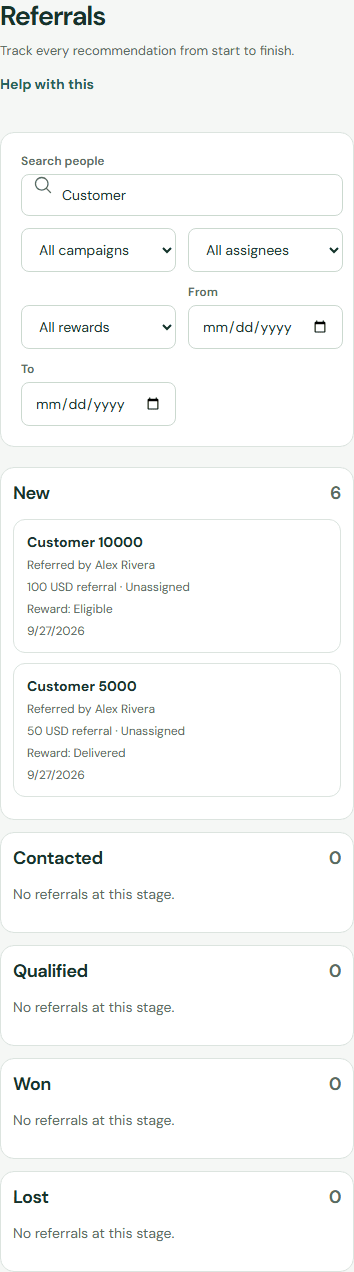
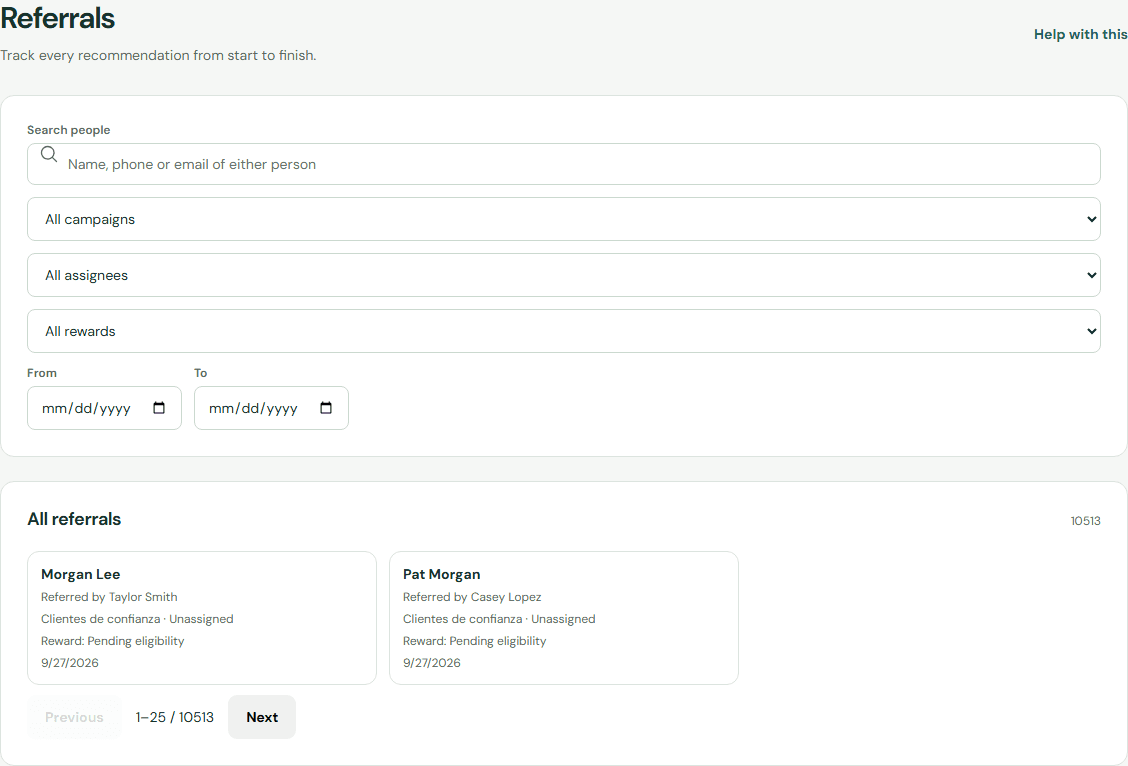
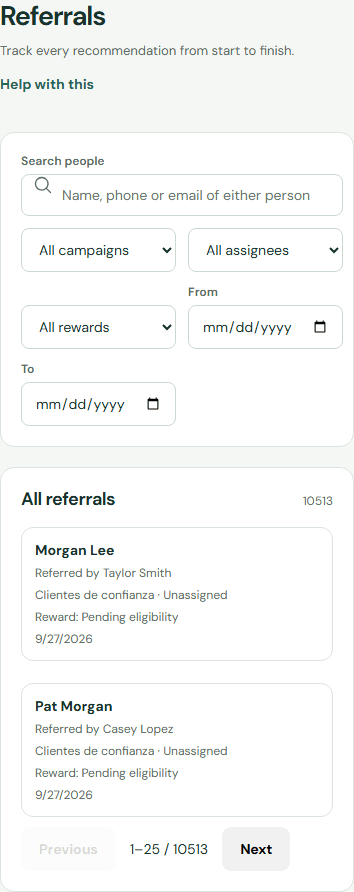
Open Referrals → Board to see New, Contacted, Qualified, Won, and Lost. Each stage shows its full count while loading 20 cards at a time. Use List to review a larger volume with search across both people's details and filters for campaign, assignee, reward, and date.
Switch to List for a compact view of many referrals. The search and filters cover all records, including those on later pages.
The list and its campaign and assignee filters show the selected business's records. Archived referrals are excluded. If a date filter is rejected, choose a valid calendar date or clear that filter and try again. If the list or board cannot load, choose Retry; your current filters are kept. A failed request does not mean there are no referrals.
Open a card to see consent, activity, and related jobs. If your role permits it, assign an owner or change the stage. In Rewards, the business decides when a referral is eligible. To mark a reward delivered, record the delivery method and an optional reference. Relato records delivery but does not transfer the reward money.
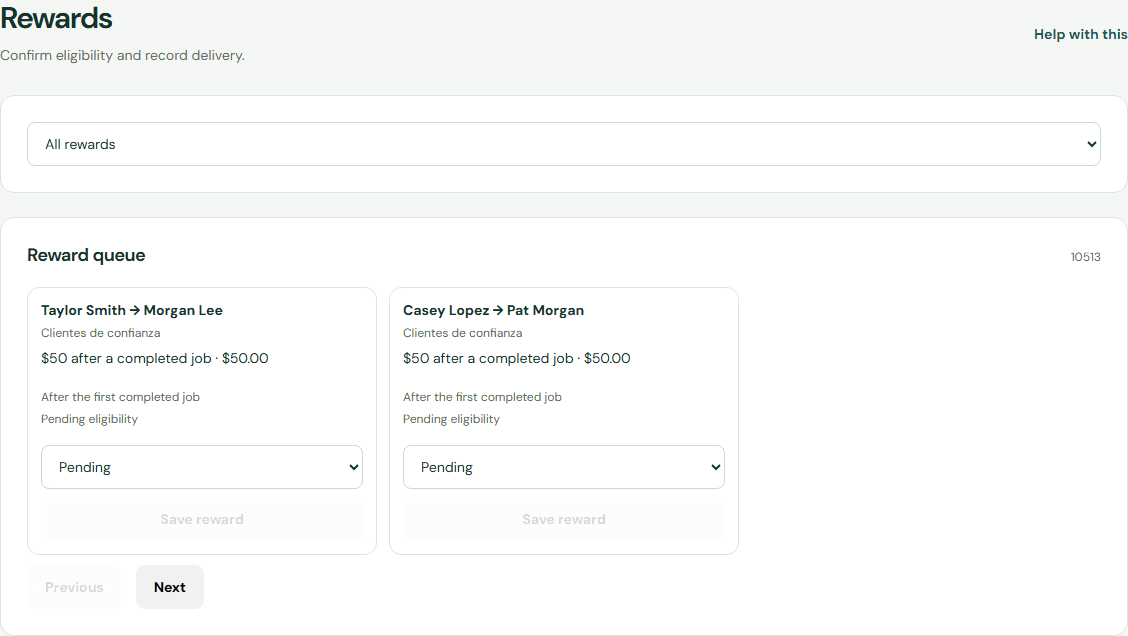
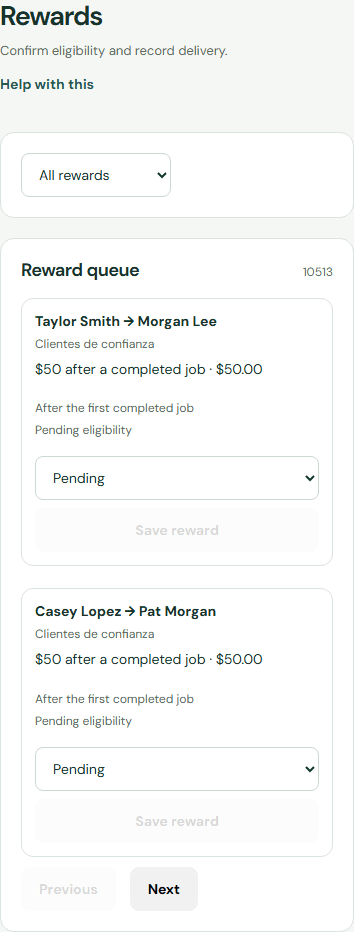
In Campaigns, define the reward type, USD value, and written terms. Each submission retains a snapshot of the offer at the time it was sent, so later campaign edits do not alter existing rewards.
Use your own form
You can send the same information from a Next.js form or another website using:
POST /api/embed/referrals/{code}
the fields configured for the campaign
consent: true
an optional visitor_token
If the browser sends the request directly, add the domain under Allowed origins for external forms. Calls made from your server do not send an Origin header.
Customize the fields
Each line follows this order:
key | Spanish label | English label | type | required | Spanish options | English options
Keep labels and options in both languages so every part of the public form remains translated.
Search another guide or submit a ticket from your dashboard.