Support and troubleshooting
Search Help before filing a ticket. Your tickets and replies stay in Relato; replies do not send email or external messages.
Updated: 2026-10-05What this covers
Search this Help Center before filing a ticket. Any active user in a Relato customer workspace can create a support request. Each signed-in user sees only tickets they created; other company users' ticket conversations are not shown in this screen.
Steps
1. Open Support from the dashboard, search for the topic first, and describe the issue in a new ticket.
Search the guides for a solution first.
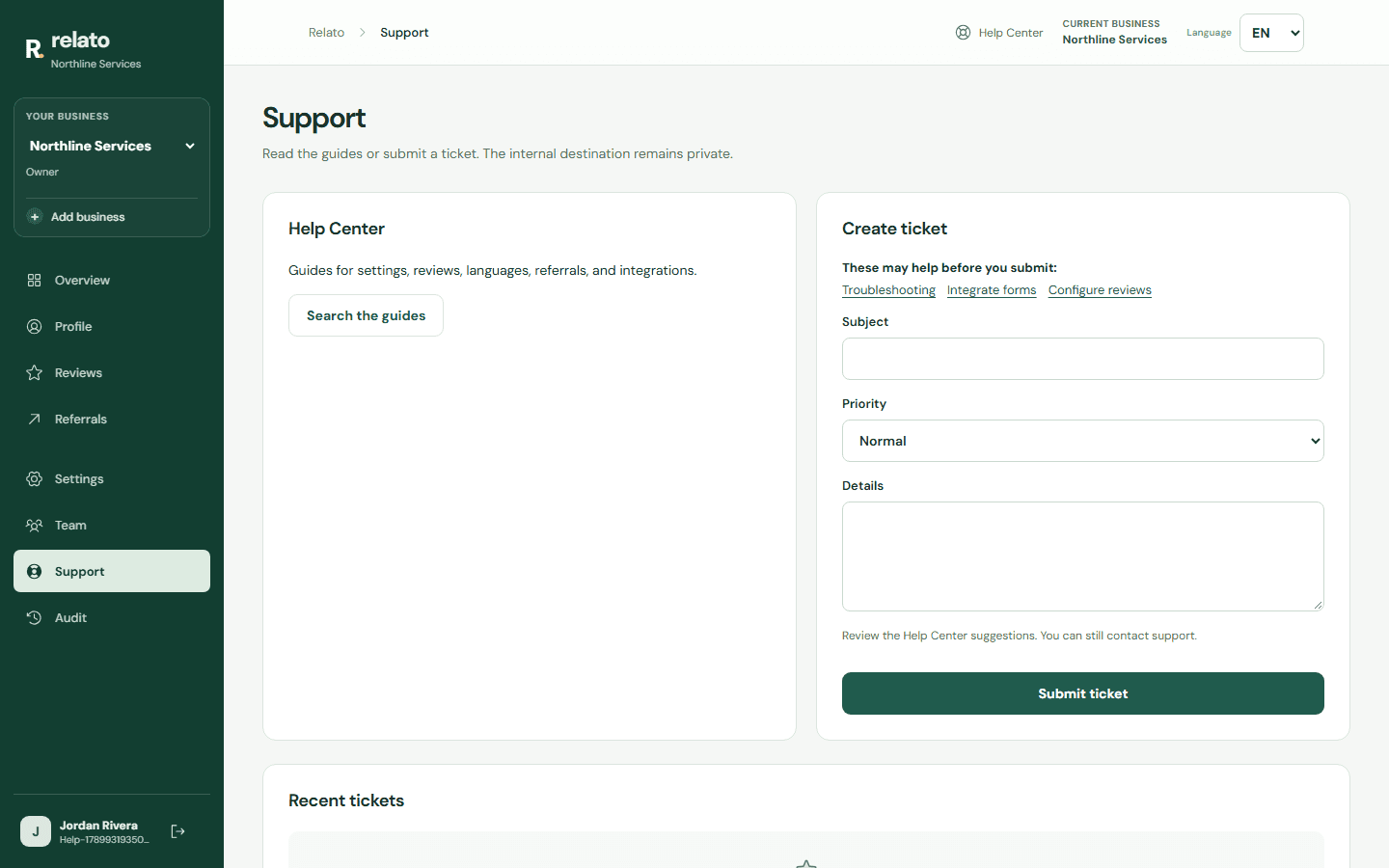
Enter a clear subject. Complete the details and submit the ticket below.
Search the guides for a solution first.
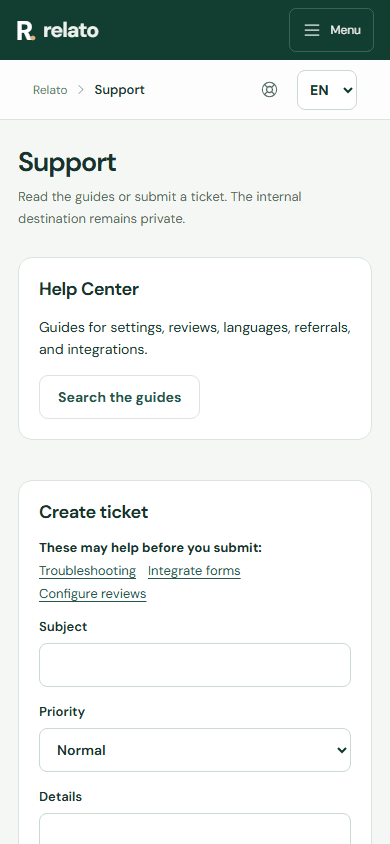
Enter a clear subject. Complete the details and submit the ticket below.
2. Create the ticket with a clear subject and reproduction steps. The request is saved in Relato for the support team.
3. Open one of your tickets to read and add replies. A support response appears in that conversation; Relato does not send an email or external message, so check the ticket for updates.
Dashboard navigation
Each section has its own address, such as /dashboard/support or /dashboard/referrals. You can reload, copy the link, and use Back/Forward without losing the current section. During dashboard navigation, the sidebar and header remain mounted while only the main content changes. Older links using #soporte are updated automatically.
Limits
The product records actions it can observe. External platform publication requires separate evidence.
Reading screenshots
Each instruction includes a crop of the relevant control, marked with its number. Mobile crops display directly without enlargement. Wide desktop crops offer a full-size detail view.
Use the Desktop and Mobile tabs above each screenshot to see instructions for your device. Only one view is shown at a time.
The draft uses the basic format
If assisted writing is unavailable, Relato keeps the flow working with a template. You can edit it before copying or try again later.
QR for a technician who left the team
Removing a member automatically pauses their QR codes. Previous reviews keep their attribution. Create a separate QR in Team for another person.
Navigate on your phone
Tap Menu in the green bar to open the sections and business selector. Choosing a section closes the menu and shows its content. Close menu closes it without navigating; with a keyboard, Escape returns focus to the menu button.
Help Center is also available in the dashboard header. On small screens it appears as a lifebuoy icon.
If saving fails
Creation forms preserve your entries when the server returns an error. Read the message, correct the value, or retry when your connection returns. The form clears after a successful save.
If Contacts does not load
If the dashboard says your session expired, sign in again. If you do not have permission to view contacts, ask your business administrator for access. For a connection problem, check your connection and try again; if it continues, contact Support from the dashboard.
Search another guide or submit a ticket from your dashboard.