Password reset and account access
Request a one-hour password reset link, choose a new password, and close previous sessions.
Updated: 2026-09-20Reset a password
1. On the sign-in screen, choose Forgot your password?
2. Enter the account email. Relato always shows the same confirmation so account addresses remain private.
3. Open the secure email link within one hour and choose a password with at least 12 characters.
4. After the change, all previous sessions are signed out. Sign in again with the new password.
Local development
When SMTP is not configured, the local application shows a development-only preview link after a valid request. Production never exposes this link in the browser.
Invitation access
If an invitation belongs to an existing account, sign in with that exact email. Accepting adds the business to the existing selector and keeps the current password.
Activate a new business
When Relato creates the main business, its owner receives an activation link that remains valid for seven days.
If the email does not have a Relato account yet, the link lets the owner create a password with at least 12 characters.
If the email already belongs to an account, enter the current password. Relato adds only the new business to the selector and preserves the other businesses, profile, and password.
The link works once. If it expires, ask support to resend the activation.
Update your profile
Open Profile from the dashboard navigation or by selecting your name in the sidebar.
Edit your name here.
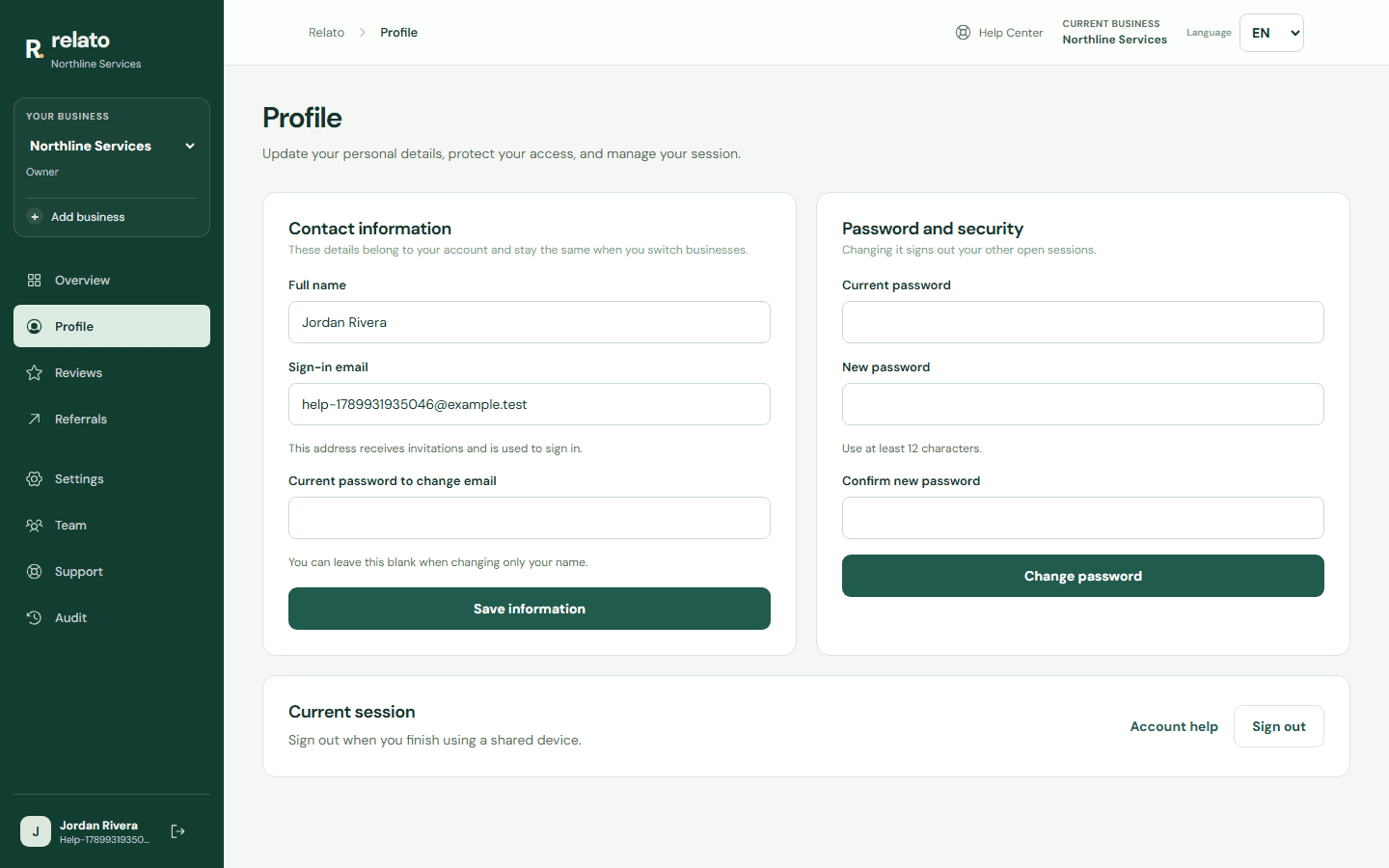
This is your sign-in email. To change it, enter your current password below.
Edit your name here.
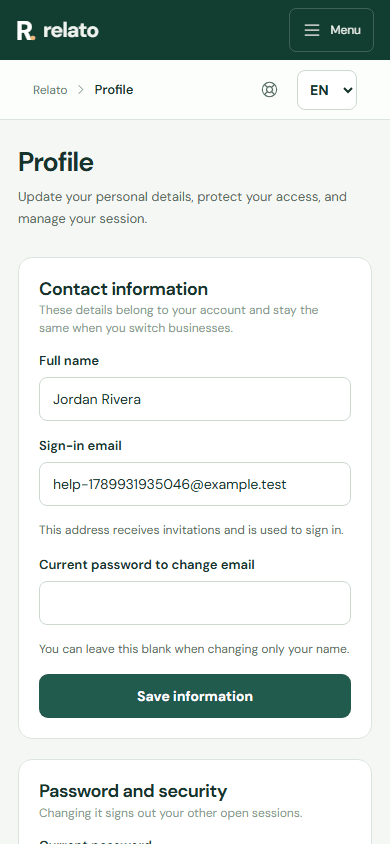
This is your sign-in email. To change it, enter your current password below.
You can change your name without entering your password.
To change your sign-in email, also enter your current password. The new address will be used to sign in and receive future invitations.
Your profile belongs to your account. Changes appear across every business in your selector.
Change your password from the dashboard
In Profile, enter your current password and a new password with at least 12 characters. Relato signs out your other open sessions and keeps the session where you made the change active.
Sign out
Choose Sign out from the mobile navigation, beside your profile in the sidebar, or on the Profile page. After signing out, the browser Back button does not restore an authenticated session.
Access from mobile navigation
Open Menu → Profile to edit your details. In that same menu, the sign-out button beside your account ends your session. Sign-in and registration fields keep their labels in the selected language.
Sign-in and installed application
The home page shows sign-in only. Arrange new business accounts with Relato; team invitations remain available within the business user limit.
Install Relato from My QR (technicians) or Profile (dashboard). On iPhone, open the site in Safari and choose Share → Add to Home Screen. On Android, use Install Relato when offered or the Chrome menu → Install app / Add to Home screen. Account access needs a connection; when offline, a retry screen appears. You can download your QR beforehand and show the saved image.
Technicians find their details under My profile, below the QR, and Sign out at the top.
Search another guide or submit a ticket from your dashboard.