Dashboard and metrics
Metrics separate invitations, visits, drafts, copy events, outbound opens, self reports, and evidence confirmations. Selected chips appear in aspect analytics.
Updated: 2026-10-05What this covers
Metrics separate invitations, visits, drafts, copy events, outbound opens, self reports, and evidence confirmations. Selected chips appear in aspect analytics.
Steps
1. Open Overview to review recent activity for the selected business.
Refresh the data using this button.
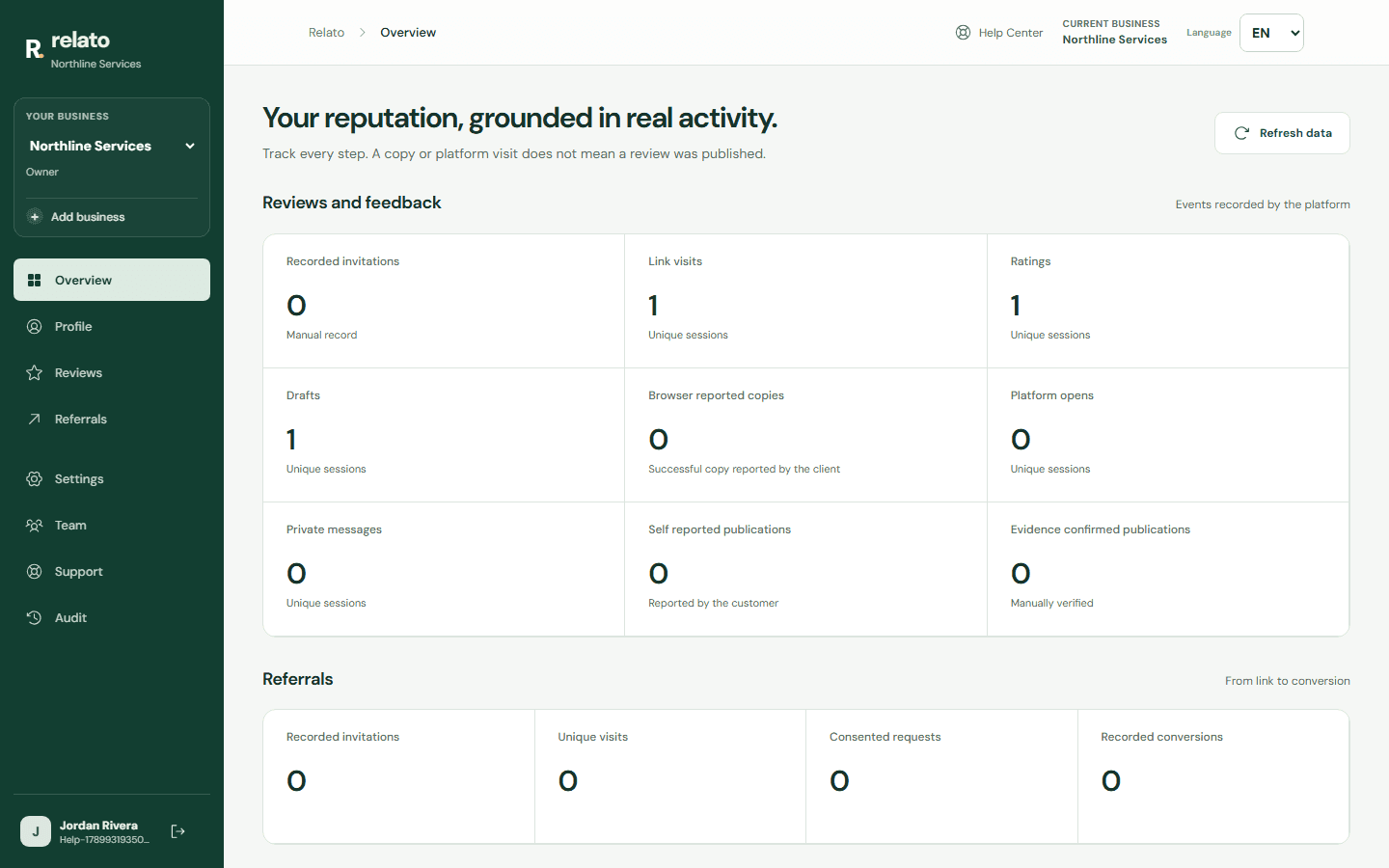
Read each counter label; an invitation does not confirm a publication.
Refresh the data using this button.
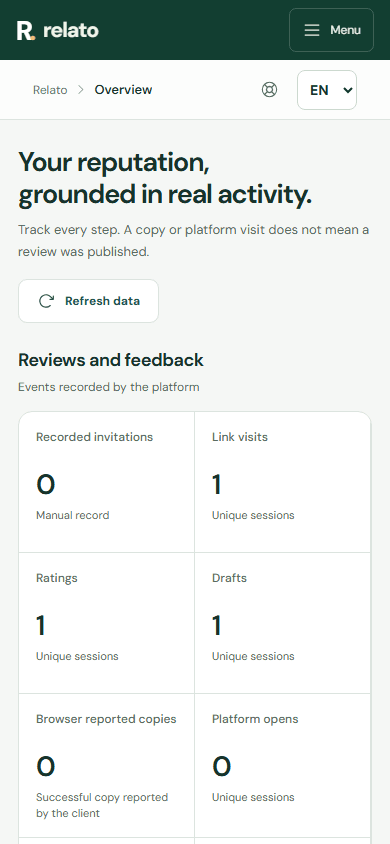
Read each counter label; an invitation does not confirm a publication.
2. Compare invitations, visits, drafts, copies, exits, and confirmations. Selected chips appear grouped in analytics.
3. Switch businesses from the selector to see separate data; metrics are never mixed across workspaces.
Limits
The product records actions it can observe. External platform publication requires separate evidence.
Read the overview
Counters share a grid for comparison. Read each title and description: invitations are manual records, self-reported publications come from customers, and confirmed publications require evidence. Refresh data shows a refreshing state while requesting data.
On your phone, open Menu → Overview. The menu closes when you choose the section.
Reports
In Reports, choose a dataset and the columns available to your account. The table shows up to 50 rows per page. It displays the selected records and does not calculate new metrics or add date filters. Access to each dataset follows your role and business modules.
Choose Export CSV to download up to 5,000 rows. If the export is larger, the screen says that the file was truncated. A saved preset is private to your account and stores only its name, dataset, and selected columns; it does not save a copy of the report data.
Search another guide or submit a ticket from your dashboard.